
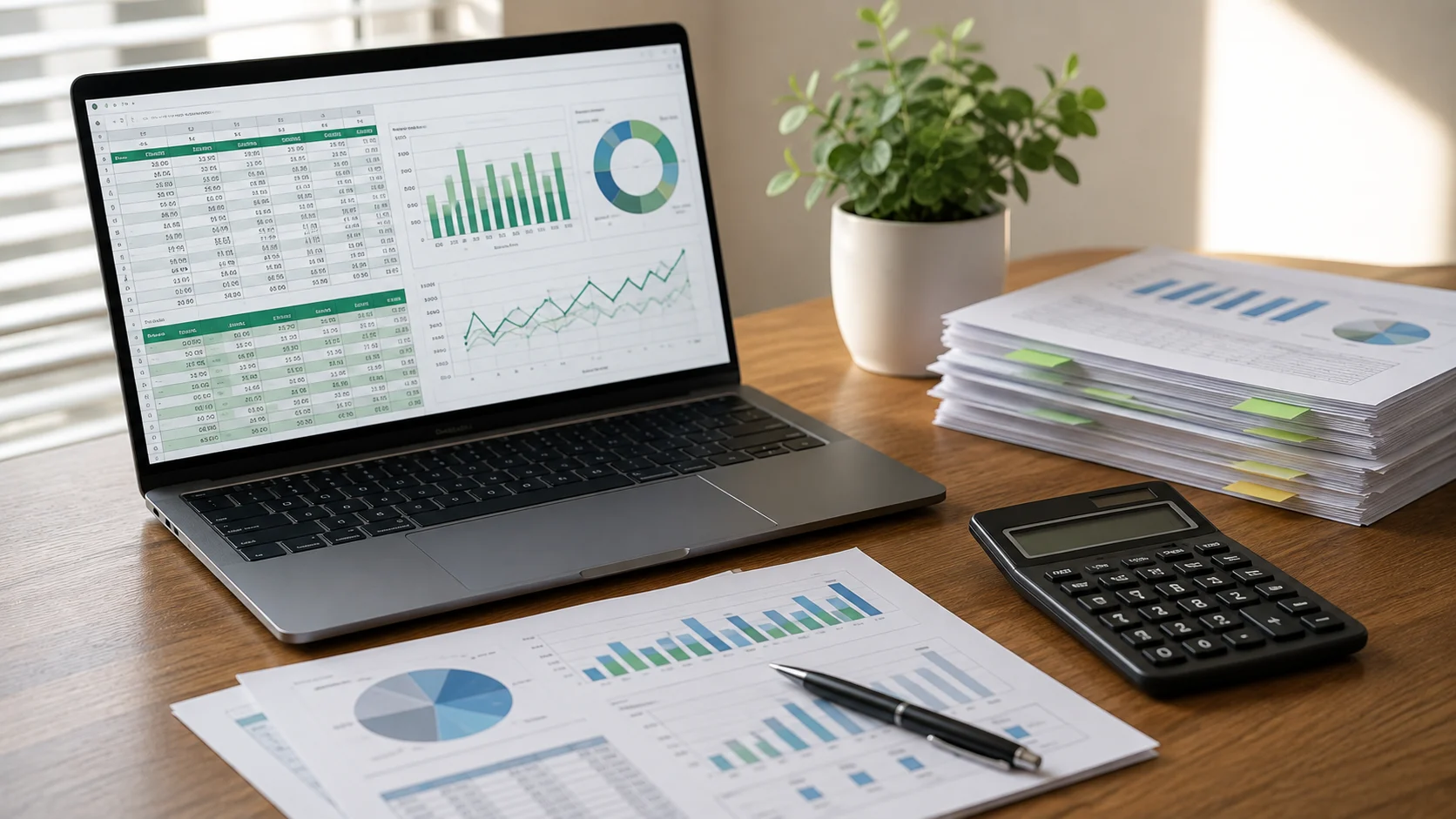
Spreadsheets are powerful because they combine data, formulas, tables, charts, and flexible analysis. They are also easy to break. AI spreadsheet tools aim to make common tasks easier by letting users describe what they want in natural language.
Modern spreadsheet AI can suggest formulas, summarize data, create charts, identify trends, explain existing calculations, and help users explore a workbook without memorizing every function.
What Can AI Do in a Spreadsheet?
AI features can help generate formulas, add calculated columns, explain complex expressions, create PivotTables, highlight outliers, summarize text feedback, and build visualizations.
Microsoft’s Copilot in Excel, for example, can work with native Excel tools such as tables, charts, PivotTables, and formulas while keeping workbook content editable.
Natural-Language Formulas
One of the most useful features is describing a calculation in ordinary language. A user might ask for profit margin, percentage change, days between dates, or a lookup between tables.
The AI can suggest the formula and explain how it works. This helps beginners learn rather than simply copy a mysterious expression.
Finding Trends and Outliers
AI can summarize numerical data and identify unusual values, trends, or patterns. This is useful for sales reports, budgets, survey results, inventory, and operational dashboards.
The system may generate a chart or PivotTable to make the pattern easier to inspect.
Working With Text Data
Spreadsheets often contain customer comments, survey responses, product descriptions, and support notes. AI can classify themes, summarize comments, or extract structured fields from text.
This turns spreadsheets into a lightweight environment for mixed quantitative and qualitative analysis.
Data Cleaning
AI can help identify inconsistent formatting, create standardized categories, split or combine text fields, and suggest transformations.
However, bulk changes should be reviewed. A cleaning rule that looks sensible can silently alter valid exceptions.
Charts and Visualizations
Users can describe the relationship they want to see and ask AI to create an appropriate chart. The model can reduce the friction of deciding which menus and settings to use.
The user still needs to decide whether the chart communicates the data honestly.
AI Does Not Replace Spreadsheet Skills
A generated formula can be wrong. A summary can misinterpret a column. A chart can emphasize the wrong comparison.
Understanding basic spreadsheet logic makes it much easier to review AI suggestions.
Verification Is Essential
Check totals, formulas, filters, data ranges, and assumptions. For important financial or operational reports, compare AI-generated outputs with known values.
Microsoft explicitly recommends reviewing and verifying AI-generated spreadsheet content.
Spreadsheet AI vs. General Data Analysis
Spreadsheet tools are best when the workbook itself is the working environment. More advanced analysis may require Python, statistical software, databases, or dedicated AI data analysis tools.
The two approaches increasingly overlap.
Privacy
Spreadsheets often contain financial, employee, customer, or operational data. Use organizationally approved AI tools and understand where the workbook is processed.
A consumer AI service may not be appropriate for confidential company data.
The Bottom Line
AI spreadsheet tools reduce the friction of formulas, analysis, charts, and data organization by letting users work through natural-language instructions.
They are most valuable as an assistant inside a spreadsheet workflow. Keep the workbook editable, inspect every important calculation, and use AI to accelerate analysis rather than replacing basic data validation.
A Practical Checklist Before You Rely on Ai Spreadsheet Tools
Define the job first. Decide what success means before choosing a model or product. A system can look impressive in a demo while solving the wrong problem. Write down the expected output, the information it may use, the acceptable error rate, and which decisions still require a person.
Test representative examples. A useful first test is to give the tool a workbook with known totals and formulas, then verify every generated calculation against a trusted result. Include normal cases and difficult edge cases. The goal is to learn where the system is dependable and where it needs stronger instructions, additional tools, or human review.
Verify important outputs. Do not confuse fluency with correctness. Check facts, calculations, citations, permissions, and important transformations against a reliable source. The more expensive or difficult an error would be to reverse, the stronger the verification process should be.
Review privacy and access. Understand what information is being sent to the system, where it is stored, and who can retrieve it later. Give connected AI tools only the permissions they need. Sensitive data should follow the same governance rules that apply elsewhere in the organization.
Measure value over time. Track time saved, correction rate, reliability, user satisfaction, and operational cost. A tool that feels fast during the first week may not create lasting value if people spend the same amount of time fixing its output.
Common Mistakes to Avoid
One common mistake is choosing technology before defining the workflow. Another is testing only ideal examples. Teams also tend to add automation without planning what happens when the model is uncertain, the data is missing, or a connected service fails.
The most important limitation to keep in mind is that a plausible formula can quietly reference the wrong range or apply the wrong business assumption. Build the workflow around that reality rather than assuming future model improvements will automatically solve it.
Frequently Asked Questions
Is AI spreadsheet tools always more accurate than a simpler approach?
No. AI is valuable when the task benefits from language understanding, pattern recognition, generation, or flexible decision support. A deterministic rule, database query, spreadsheet formula, or conventional software function can be better when the task is predictable and exact.
Should I pay for a AI spreadsheet tools product immediately?
Usually not. Start with a free tier, trial, or small pilot when one is available. Use it on real work and measure whether it saves time or improves quality. A paid plan becomes easier to justify when limits, collaboration, privacy, integrations, or higher-quality features solve a recurring problem.
What is the safest way to start using AI spreadsheet tools?
Begin with a narrow, reversible use case. Keep source material or original data available, review the output manually, and document the situations where the system fails. Expand automation only after the workflow performs consistently on representative examples and users know how to recover when it is wrong.